
Uncategorized
How to Access Omni on Gemini
If you’re trying to figure out how to access Omni on Gemini, the short answer is: use the browser-based Free Gemini Omni web platform and go directly to the…

If you’re trying to figure out how to access Omni on Gemini, the short answer is: use the browser-based Free Gemini Omni web platform and go directly to the dashboard to start creating AI videos. This article explains what the platform does, how to get in, what you can create, and which plan may fit your needs.
What “Gemini Omni” Means on This Platform
Conclusion: Free Gemini Omni is a web-based AI video generator, not a Google product, and it focuses on browser access for fast video creation.
Explanation:
The platform at freegeminiomni.com is described as a free Gemini Omni AI video generator. It lets users create cinematic AI videos from text, images, audio, and video prompts online. It also supports remixing and editing workflows in natural language, which makes it easier to work without technical setup.
Practical advice:
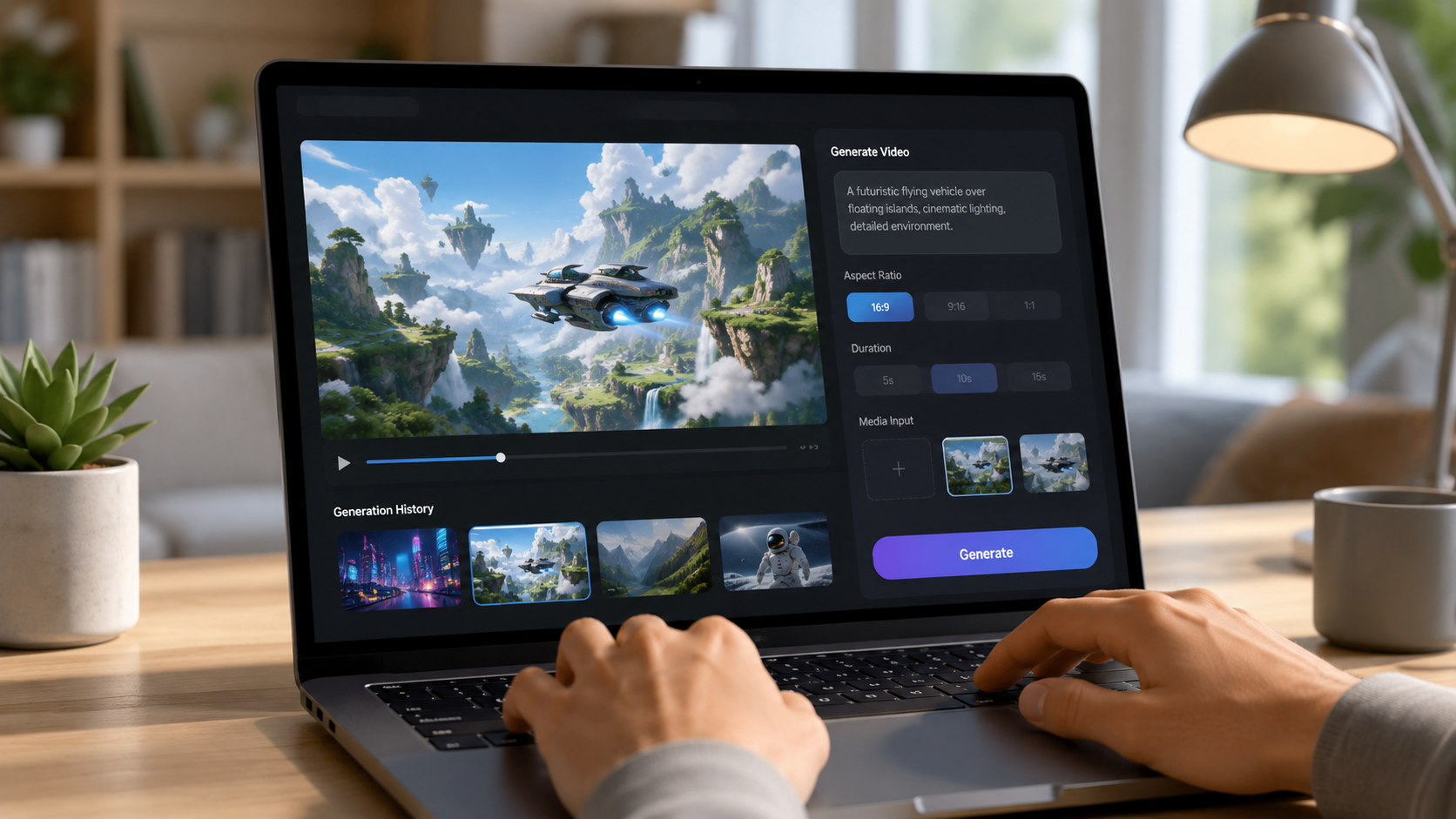
If your goal is to access Omni quickly, skip software installation and use the browser interface directly. The main entry point is the dashboard:
How to Access Omni on Gemini Step by Step
Conclusion: Accessing Omni is straightforward because the platform is browser-based and designed for simple online use.
Explanation:
You do not need to install software. Instead, you open the website and go to the generation dashboard. From there, you can begin creating videos using text prompts or other media inputs.
Practical advice:
Follow these steps:
- Visit the website at freegeminiomni.com.
- Open the dashboard/generate page.
- Choose the type of input you want to use.
- Enter a text prompt or upload media.
- Use the built-in editing or remix instructions if needed.
- Generate the video and refine it as required.
Access Summary
| Step | What to Do | Why It Matters |
|---|---|---|
| 1 | Open the website | Starts the process in your browser |
| 2 | Go to the generate dashboard | Takes you to the creation area |
| 3 | Select input type | Helps match your project goal |
| 4 | Add your prompt or media | Provides the creative direction |
| 5 | Generate and edit | Lets you improve the final output |
What You Can Create with Omni
Conclusion: The platform is built for cinematic AI video creation across multiple use cases, not just one format.
Explanation:
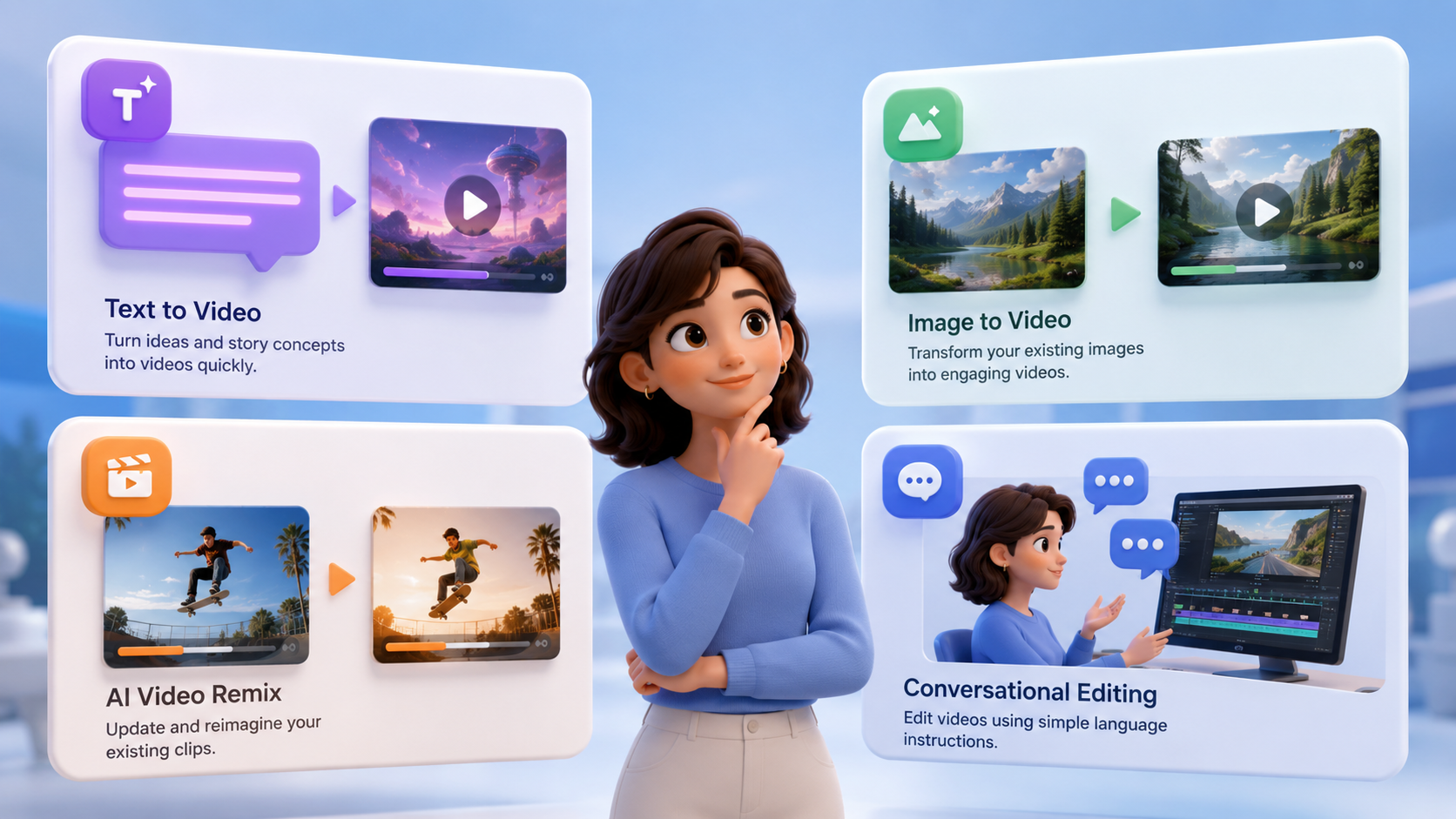
Free Gemini Omni supports several workflows:
- Text to Video: Create short videos from natural language prompts.
- Image to Video: Turn still images into motion while keeping visual direction.
- AI Video Remix: Describe changes to existing clips conversationally.
- Conversational Editing: Modify scenes using plain-language instructions.
It is suited for different content types, including:
- Product Ads
- Explainer Videos
- Cinematic Storyboards
Practical advice:
Choose the workflow based on your goal:
- Use Text to Video for quick concepts or story ideas.
- Use Image to Video when you already have a visual asset.
- Use AI Video Remix when you want to update an existing clip.
- Use Conversational Editing when you prefer simple language instructions instead of technical editing tools.
Pricing and Plan Options
Conclusion: Free Gemini Omni offers tiered pricing plans based on credit allocation and feature needs.
Explanation:
The available plans are:
- Lite Plan — $12.99/month, 3,000 credits
- Pro Plan — $34.99/month, 10,000 credits
- Ultra Plan — $129.99/month, 30,000 credits
These plans are intended for different usage levels, from lighter creation needs to larger-scale video generation.
Practical advice:
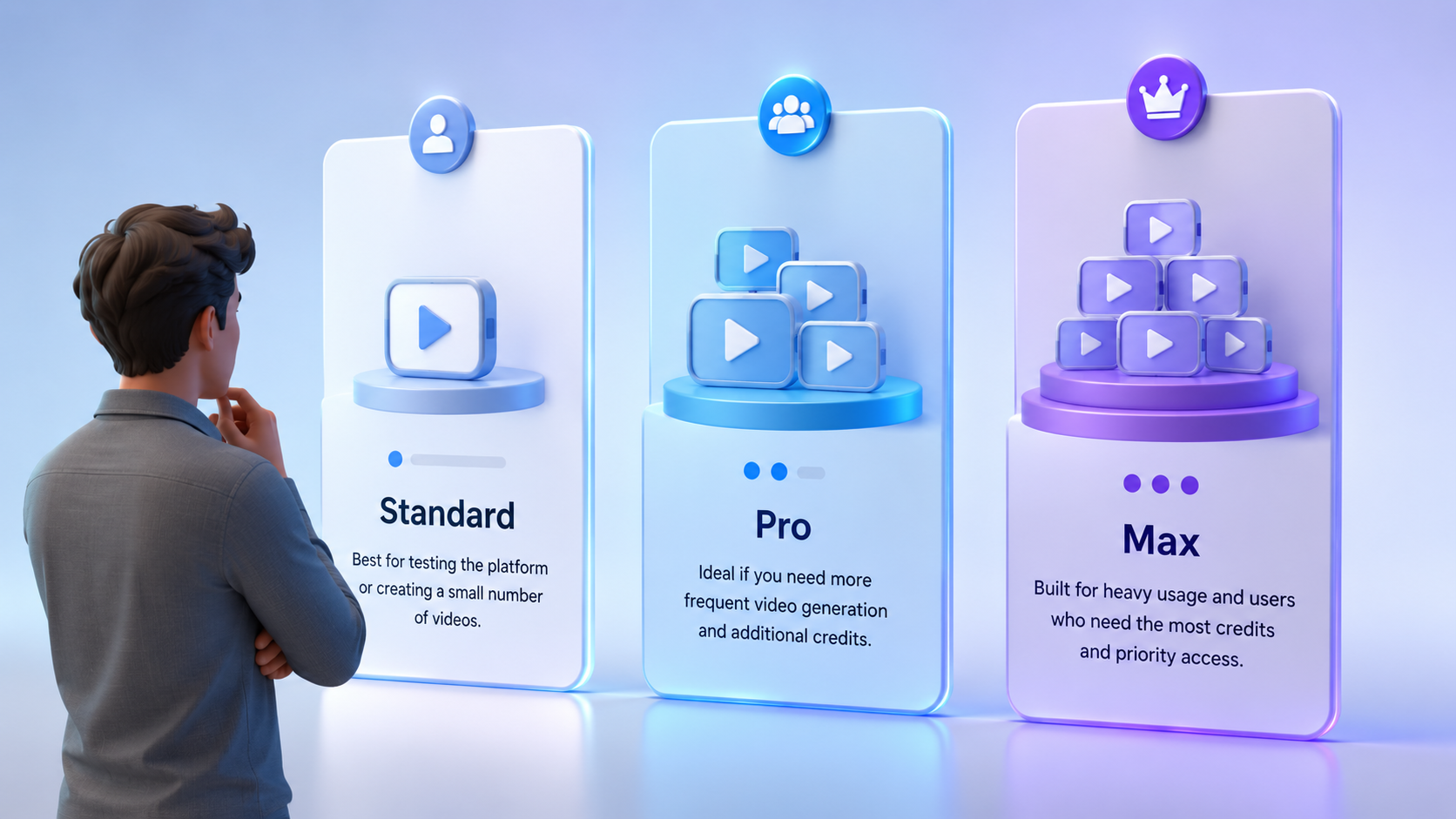
Pick a plan by considering how often you will generate videos:
- Lite if you are testing the platform or creating a small number of videos.
- Pro if you need more frequent output.
- Ultra if you expect heavier usage and need the most credits.
Common Questions Before You Start
Conclusion: Before accessing Omni, it helps to know what the platform is and is not.
Explanation:
The reference information confirms a few important points:
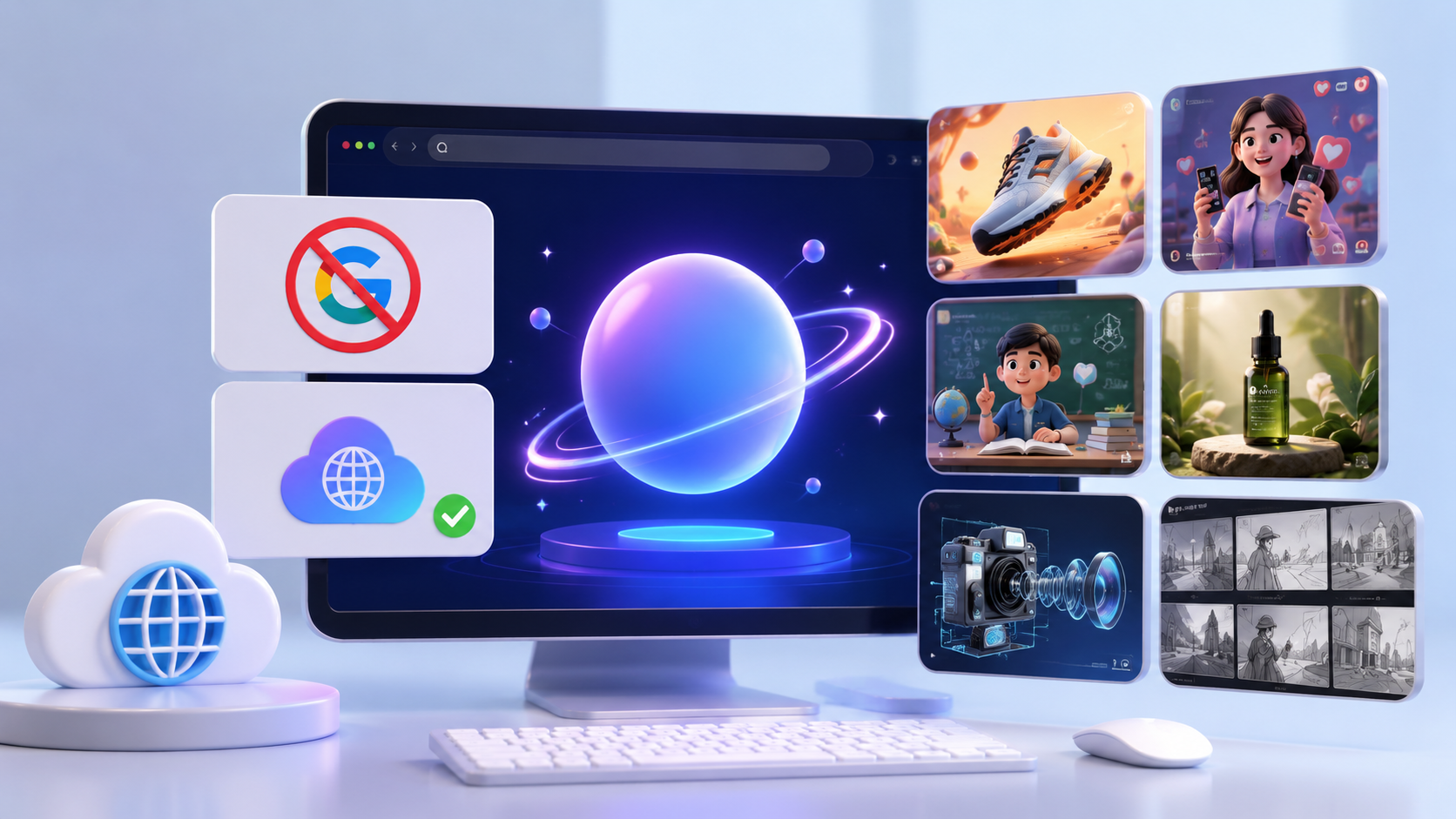
- Free Gemini Omni is not affiliated with Google.
- It is browser-based, so no installation is required.
- It supports AI ads, social videos, and educational content.
Practical advice:
Use the platform when you want a simple online workflow for video generation, especially if you need fast access without setting up software or development tools.
FAQ
Is Free Gemini Omni affiliated with Google?
No. The reference information says it is not affiliated with Google.
Do I need to install software to use it?
No. It is browser-based, so you can use it online.
What kind of content can I create?
You can create AI ads, social videos, educational content, product ads, explainer videos, and cinematic storyboards.
Can developers use it?
Yes. The reference information mentions the Gemini Omni API for integrating video generation features into applications.
Where do I start?
You can begin at the Free Gemini Omni dashboard:
https://freegeminiomni.com/create
Conclusion
If you want to know how to access Omni on Gemini, the process is simple: open the Free Gemini Omni website, go to the generation dashboard, and start creating videos directly in your browser. The platform is designed for easy access, natural-language editing, and multiple video workflows, making it useful for marketers, educators, and developers alike.