
Uncategorized
How to Mimic Video in Gemini Omni
If your main goal is to mimic, remix, or recreate video-style output using Gemini Omni, the short answer is: use the platform’s text, image, audio, and video…

If your main goal is to mimic, remix, or recreate video-style output using Gemini Omni, the short answer is: use the platform’s text, image, audio, and video input options to guide the result in natural language. Free Gemini Omni is designed for browser-based AI video creation, so you can generate cinematic clips, animate images, and edit existing footage without complicated software setup.
This article explains how to approach that workflow in a practical way, what features matter most, and how to choose the right method for different video goals.
1) Understand What “Mimic Video” Means in Gemini Omni
Conclusion: In Gemini Omni, “mimicking video” usually means creating a new clip that follows the style, motion, or structure of a reference video rather than manually editing frame by frame.
Free Gemini Omni supports several workflows that make this possible:
- Text to Video for generating a new clip from a prompt
- Image to Video for turning still visuals into motion
- AI Video Remix for describing changes to an existing clip
- Conversational Editing for adjusting scenes with plain-language instructions
Practical advice
If you want to mimic a video effectively, first decide what you are trying to replicate:
- Visual style: lighting, mood, pacing, cinematic feel
- Motion behavior: camera movement, subject movement, transitions
- Scene structure: opening shot, product reveal, explainer flow
- Editing changes: color, timing, background, or composition
The better you define the target, the easier it is to use Gemini Omni’s natural-language controls.
2) Choose the Right Input Type
Conclusion: The best way to mimic video depends on what materials you already have. Free Gemini Omni lets you combine different media inputs, which gives you more control over the result.
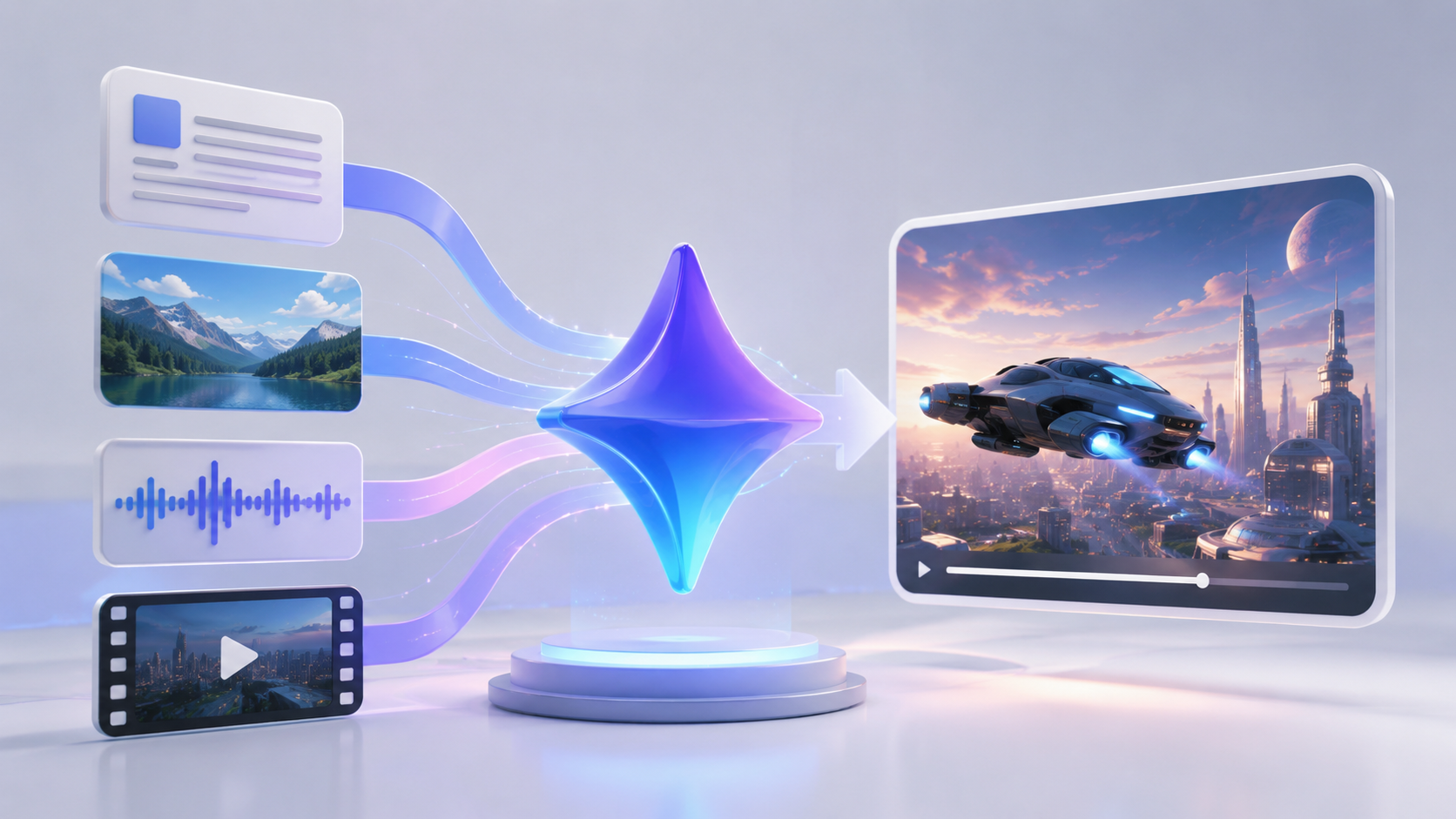
Input methods and when to use them
| Input Type | Best For | What It Helps You Mimic |
|---|---|---|
| Text prompt | Starting from scratch | Scene, style, action, tone |
| Image input | Animating a still frame | Composition, visual direction, subject appearance |
| Video reference | Remixing existing footage | Motion patterns, pacing, shot style |
| Audio input | Adding or matching sound context | Rhythm, mood, timing cues |
Practical advice
Use the simplest input that matches your goal:
- Start with text to video if you only have an idea.
- Use image to video if you want the output to stay visually close to a design or still image.
- Use video remix if you already have a clip and want to modify it.
- Add audio when timing and mood matter.
For better results, keep your prompt specific. Instead of “make it cinematic,” try to describe the scene, action, and style in natural language.
3) Use Natural-Language Editing to Match the Reference
Conclusion: Conversational editing is one of the most useful ways to mimic video in Gemini Omni because it lets you adjust content without technical editing knowledge.
Free Gemini Omni supports plain-language instructions for changing scenes. That means you can describe edits like:
- Make the scene brighter
- Change the background
- Make the pacing slower
- Keep the same composition but alter the mood
- Turn this into a product ad style clip
Practical advice
When editing a video to mimic another one, work in steps:
- Identify the strongest reference traits
- camera angle
- color tone
- energy level
- subject movement
- Write one change at a time
- This helps keep the result controlled.
- Preserve what matters most
- If the image composition is important, mention that clearly.
- Iterate with small refinements
- Use conversational prompts to adjust rather than rebuilding from scratch.
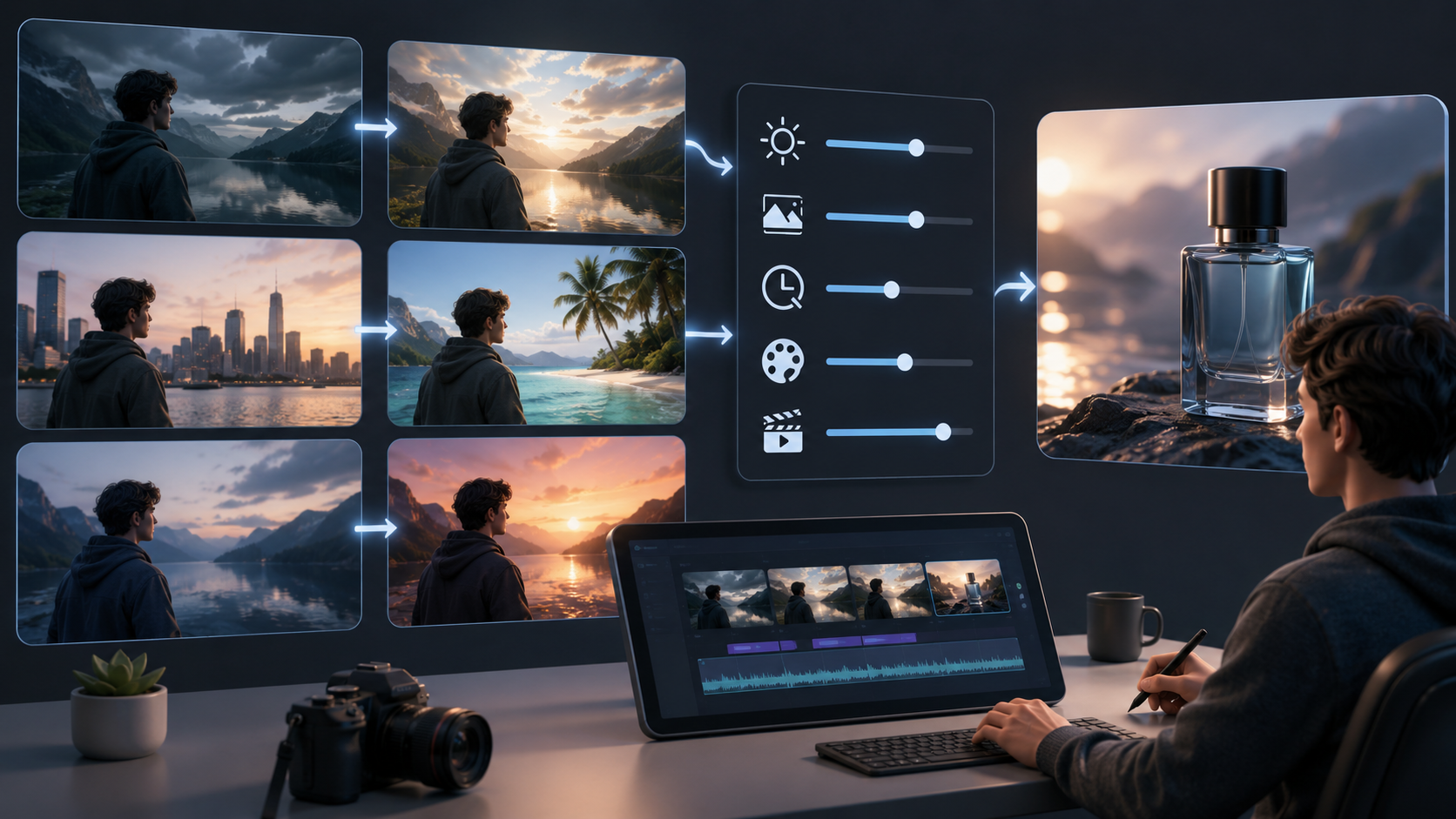
A useful prompt style is:
- “Keep the same subject and framing, but make the scene more cinematic and slow-moving.”
- “Remix this clip into a clean product ad with brighter lighting and a smoother pace.”
- “Animate this image into a short educational video with simple motion and clear focus.”
4) Match the Output to the Right Use Case
Conclusion: Mimicking video is easier when you align the output with a clear goal such as advertising, education, or storytelling.
Free Gemini Omni is positioned for several common video types:
- Product ads
- Explainer videos
- Cinematic storyboards
Practical advice
Use the workflow that fits your purpose:
-
For marketers
- Create short-form product ads for social media
- Focus on clear visuals, fast pacing, and direct messaging
-
For educators
- Build visual explainers from text or images
- Prioritize clarity, motion that supports understanding, and simple structure
-
For developers
- Use the Gemini Omni API to integrate video generation into applications
- Design prompts and templates that standardize output for your product
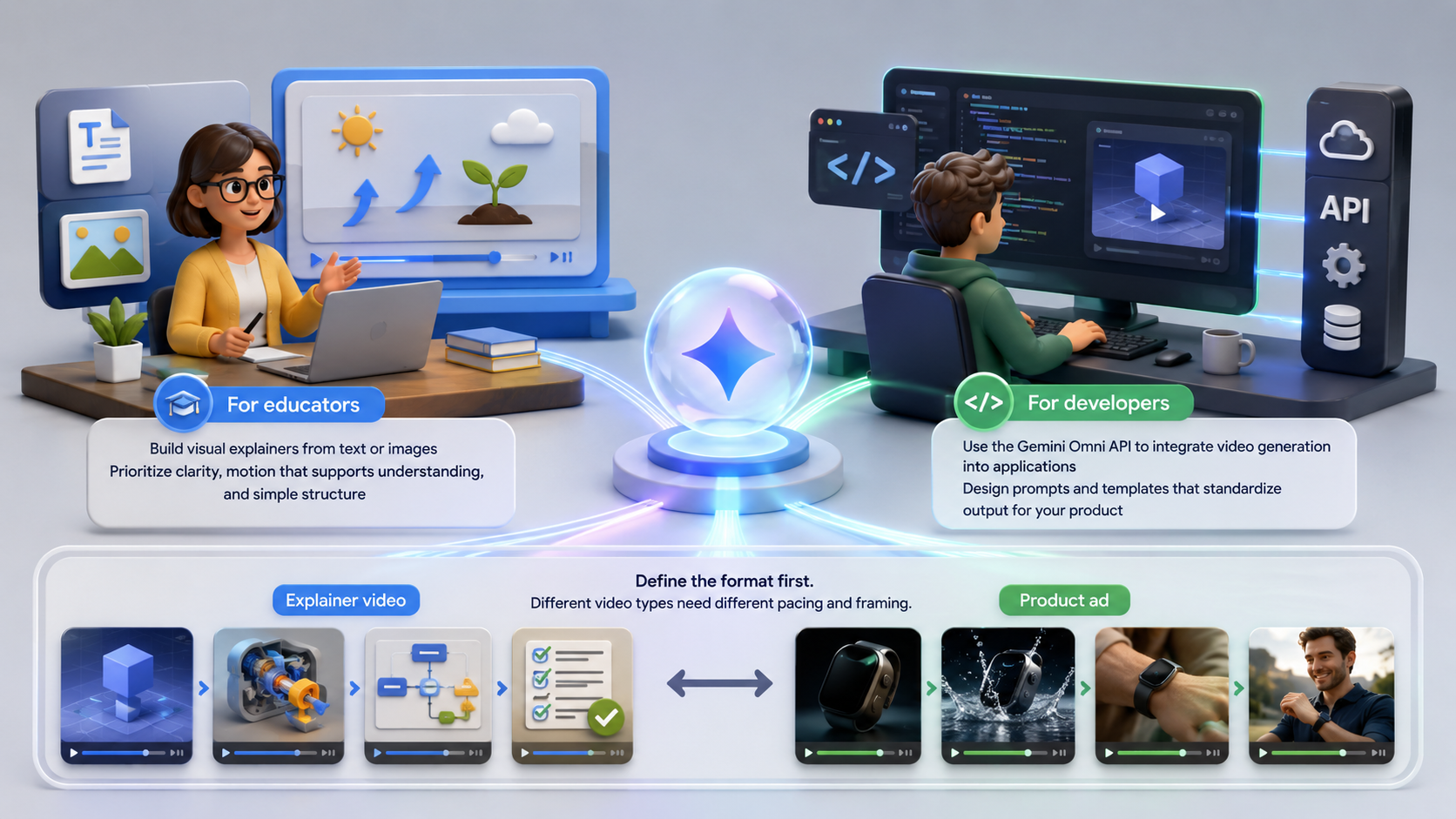
If you are trying to mimic a specific type of video, define the format first. A product ad, for example, usually needs different pacing and framing than an explainer.
5) Getting Started in Free Gemini Omni
Conclusion: You do not need to install software to begin. Free Gemini Omni is browser-based, which makes it easy to test video-mimicking workflows quickly.
You can start by visiting the dashboard here: Free Gemini Omni dashboard
Practical advice
A simple starter workflow looks like this:
- Open the dashboard in your browser
- Choose the input type that matches your goal
- Write a clear natural-language prompt
- Add images, audio, or video references if needed
- Review the output and refine the instruction
Pricing overview
| Plan | Price | Credits |
|---|---|---|
| Lite Plan | $12.99/month | 3,000 credits |
| Pro Plan | $34.99/month | 10,000 credits |
| Ultra Plan | $129.99/month | 30,000 credits |
Choose based on how often you generate videos and how many credits you expect to use.
FAQ
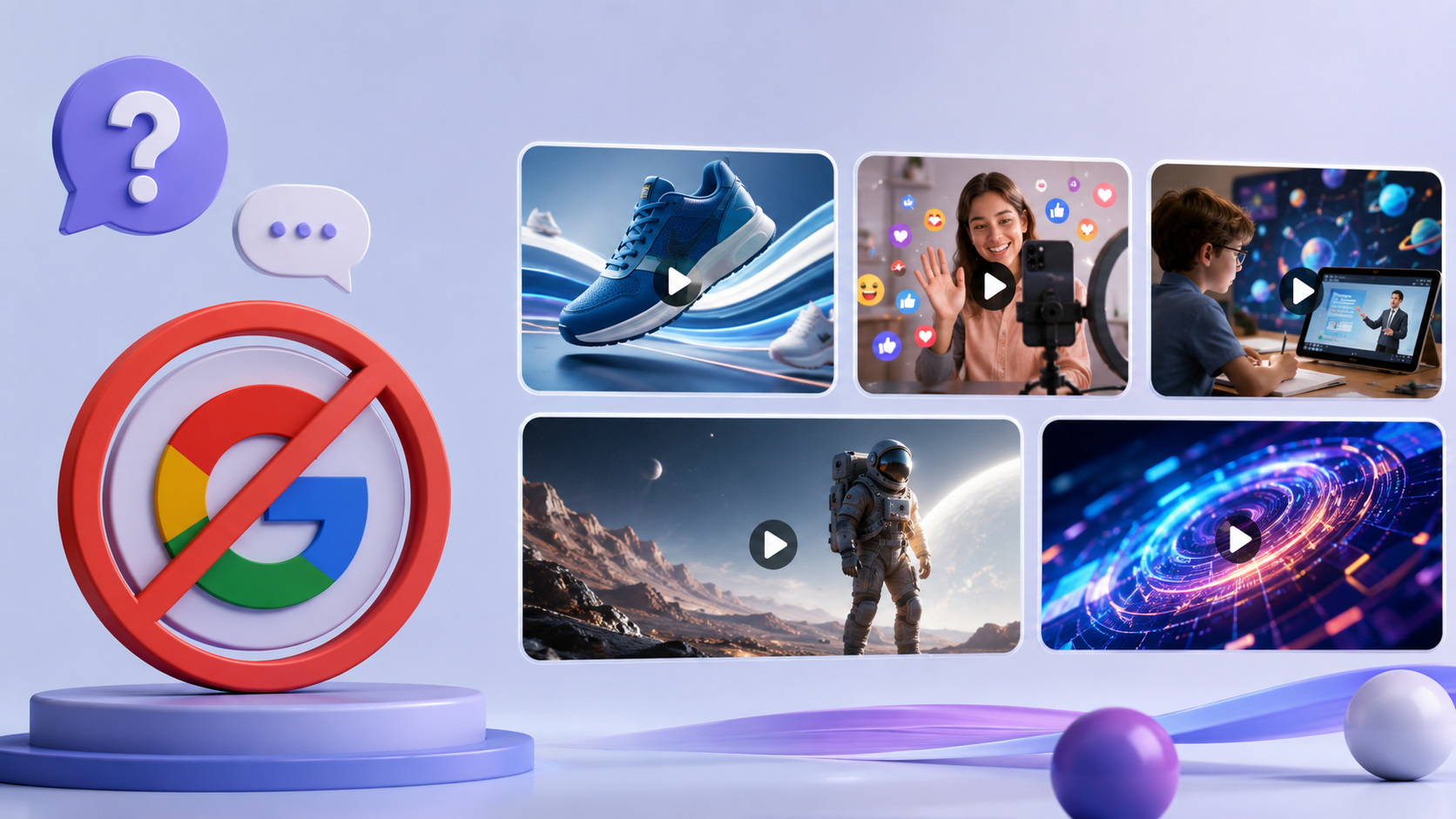
Is Free Gemini Omni affiliated with Google?
No. According to the available information, Free Gemini Omni is not affiliated with Google.
What kind of content can I create?
You can create AI ads, social videos, educational content, cinematic clips, and other browser-based AI videos.
Does it require software installation?
No. It is browser-based, so you can use it online without installing extra software.
What is the easiest way to mimic a video style?
Use a reference video or image, then describe the changes in plain language. Focus on the elements you want to preserve, such as mood, pacing, and composition.
Can I use Gemini Omni for educational or marketing content?
Yes. The platform supports workflows for both marketers and educators, including product ads and explainer videos.
Conclusion
To mimic video in Gemini Omni, the key is to combine the right input type with clear natural-language instructions. Use text, images, audio, or video references to guide the output, then refine the result through conversational editing. Because Free Gemini Omni is browser-based and designed for simple workflows, it is a practical option for creating cinematic clips, remixing existing content, and building video assets for ads, explainers, or storytelling.
If you want the fastest start, open the dashboard, choose your input method, and describe the video style you want to reproduce as clearly as possible.